CareHaven Documentation
Everything you need to know about every feature — with screenshots, step-by-step walkthroughs, and creative ways to use the app that you may not have thought of.
What is CareHaven?
CareHaven is a care coordination app built for parents and small-group caregivers of people with complex medical, behavioral, and developmental needs — autism, ADHD, cerebral palsy, Down syndrome, epilepsy, ARFID, and more.
Everything is stored privately on your device. Nothing is sent to a server. The app works fully offline. It holds up to four care recipients, with separate profiles, logs, and settings for each person.
First-time setup
- Accept Terms & Conditions on first launch.
- Complete the tutorial — a short walkthrough of the key areas. Tap Skip if you prefer to explore.
- Tap the person pill in the top-right of the home screen. It shows an initial and name. Tap it to open the Person Sheet.
- Edit the person's profile — add their name, date of birth, sex, color accent, diagnoses (comma-separated), and primary communication method.
- Add a second person by tapping the + in the person switcher. Up to 4 people are supported.
- Add your team — go to the Team tab and add doctors, therapists, teachers, and family members. Mark emergency contacts to include them in the SOS view.
Demo mode
Demo mode loads four richly populated care recipients — Zoe (autism + ARFID), Eli (ADHD + SPD), Maya (cerebral palsy + nonverbal + epilepsy), and Thomas (Down syndrome + repaired heart condition). Every feature has realistic data so you can explore the app as if you'd been using it for months.
To enable demo mode
- Go to Settings → Privacy & Data → Demo Data
- Tap the toggle. A confirmation dialog appears: tap Load Demo
- Your real data is saved before demo loads, and restored when you toggle it back off
Multiple people
Each person has their own completely separate profile — their own timeline, medications, behavior log, routines, diary, goals, seizure log, sleep log, vitals, milestones, cue guide, and schedule.
Switching between people
Tap the colored pill in the top-right of any screen to open the person switcher. Tap any name to switch. The entire app switches context — all data shown is for the selected person.
Person profile fields
- Name, avatar initial, color accent — the color appears throughout the app as that person's identifier
- Date of birth — age is calculated automatically and shown on their profile card
- Sex — used to show or hide the Cycle Tracker
- Diagnoses — shown on the profile card and included in Dr. Visit summaries and EAP cards
- Primary communication method — verbal, AAC, sign language, PECS, or mixed
📋 Today's Timeline
The Timeline is the heart of CareHaven — a chronological log of everything that happened for the selected person. Medications, wins, behaviors, triggers, health notes, and mood entries all appear here in order.
Adding entries
- Tap the central + button on the bottom bar
- Choose a type: Mood, Behavior, Win, Trigger, or Health note
- Write your note and tap Save
Viewing and editing
- Tap any entry to open full detail, inline editing, and delete
- Medication entries show given/missed status — tap to change
- The timeline window (Today / 3 Days / 7 Days) is set in Settings → Display
Entry types
- ☀️ Mood — general wellbeing note
- 📋 Behavior — links to the behavior log
- ⭐ Win! — positive moments and breakthroughs
- ⚡ Trigger — what caused a difficult moment
- ❤️ Health — symptoms, illness notes, observations
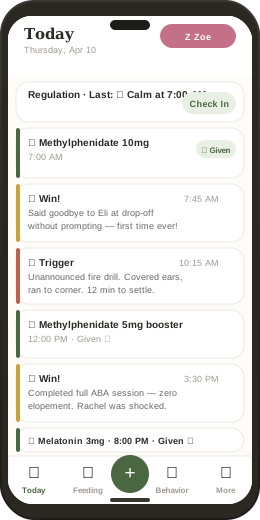
🟢 Regulation Check-in
The Regulation Bar sits at the top of the Today view. It lets you log the person's current regulation state on a 1–5 scale: 🟢 Calm, 🟡 Good, 🟠 Mixed, 🔴 Tense, 🆘 Crisis.
How to use it
- Tap Check In on the regulation bar
- Tap one of the five level buttons
- Optionally add a short note ("wound up after bus ride")
- The last logged level and time appear on the bar
📊 Behavior Log
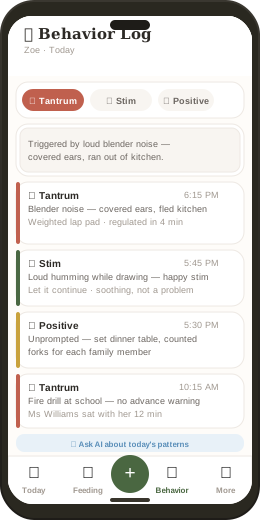
The Behavior Log tracks three types of behaviors: Stims (🔄), Tantrums/meltdowns (🌊), and Positive behaviors (⭐). Each entry includes a description, time, and type.
Logging a behavior
- Go to the Behavior tab
- Select the type: Tantrum, Stim, or Positive
- Write a brief description in the text field
- Tap the type button again to save — or tap + Log
Tapping an existing entry
Tap any logged behavior to open the detail sheet. From there you can edit the type, description, and time — or delete the entry.
AI pattern analysis
After logging 2+ behaviors, an AI button appears: 🔍 Help me understand today's patterns. Tap it to navigate to the Ask view with a pre-populated query analyzing today's behaviors. All identifying information is stripped before the query is sent.
🍼 Feeding Tracker
Built on Ellyn Satter's Division of Responsibility model: the caregiver decides what, when, and where. The child decides whether and how much. CareHaven tracks food offered and the child's response — without judgment or pressure tracking.
Logging a food
- Go to the Feeding tab
- Type a food name — autocomplete suggests common foods as you type
- Enter the amount in grams (tap the scale icon for help)
- Select response: Accepted, Explored, or Refused
- If refused or explored, optionally select a sensory reason (Texture, Smell, Temperature, Sound, Appearance)
- Tap Save
Bottle tracking
Enable bottle tracking in Settings → Display → Show Bottle Tracking. This adds a separate bottle log in ounces alongside food entries.
Understanding responses
- Accepted — ate it. Any amount counts.
- Explored — touched, smelled, licked, or held the food. This is progress in food chaining therapy.
- Refused — would not engage. The sensory reason field is key data for feeding therapists.

🚽 Potty Log
Track continence, accidents, and toilet training progress. Each entry records wet, BM, or dry check; notes; and time.
Logging
- Go to the Potty tab
- Select type: Diaper, Toilet attempt, or Dry check
- Check Wet and/or BM as applicable
- Add notes (consistency, skin condition, any concerns)
- Tap Save
🔄 Routines
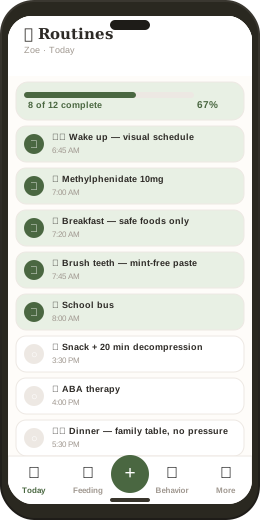
A visual daily schedule with time-tagged tasks and a completion tracker. Based on TEACCH structured teaching principles — predictability and visual sequence reduce anxiety and support independence.
Setting up routines
- Go to the Routines tab
- Tap + Add Step
- Set the time, choose an emoji icon, and write the task name
- Drag steps to reorder them
Using routines daily
- Tap the circle next to each step to mark it complete
- The progress bar and percentage update automatically
- Completions reset at midnight
📔 Diary
A rich personal journal with photo attachments, private/shared flags, and full narrative entries. The diary is where you write the full story behind the data.
Creating a diary entry
- Go to the Diary tab and tap + New Entry
- Write a title and the full entry text
- Optionally attach a photo from your camera roll
- Toggle Private if the entry should never appear in shared handoff reports
- Tap Save
Private vs. shared entries
Private entries (🔒) are visible only to you and excluded from all exports. Use private entries for your own emotional processing, hard days you need to write down, and personal reflections. Shared entries can appear in handoff reports.
💊 Medications
Medication logging is integrated into the Timeline. Every scheduled medication appears as a timeline entry with given/missed status and a weekly compliance rate.
Adding a medication to the schedule
- Go to the Routines tab and add a medication step (💊 icon, time, medication name + dose)
- Alternatively, tap + → Health → log a medication dose directly
- Mark each dose as Given ✓ or leave it to record as missed
AI medication lookup
- Tap a medication name in the timeline to open its detail view
- Tap Look up [medication name]
- The app checks its built-in knowledge base first (14 common medications), then calls the AI if needed
- Results include: what it treats, common side effects, interaction flags, and a reminder to consult your prescriber
⚡ Seizure Tracker
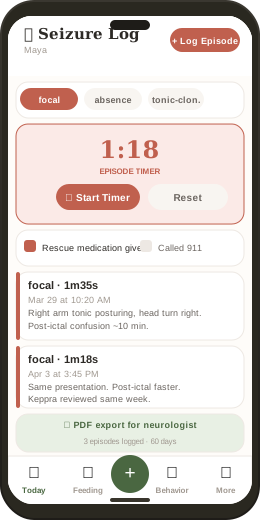
Real-time seizure logging with a built-in stopwatch. Designed for the moment a seizure occurs — minimal taps, maximum data capture. The log is exportable as PDF for neurologist appointments.
Logging a seizure
- Go to the Seizures tab and tap + Log Episode
- Select the seizure type (tonic-clonic, absence, focal, febrile, myoclonic, unknown)
- Tap ▶ Start Timer when the seizure begins
- Tap ⏹ Stop when it ends — duration is captured precisely
- Write post-ictal notes (confusion, recovery time, behavior after)
- Check boxes if rescue medication was given or 911 was called
- Tap Save
What to log in the notes field
- What the person was doing immediately before
- Which body parts were involved
- Eye movement or deviation
- Skin color changes
- Post-ictal duration and behavior
- Any potential triggers (illness, sleep disruption, missed medication)
😴 Sleep Log
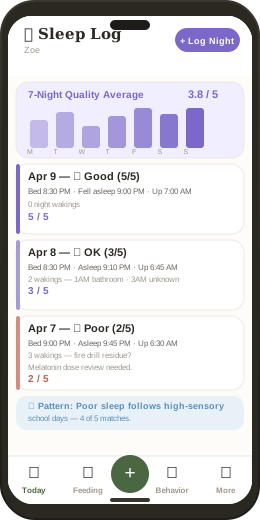
Log bedtime, time to fall asleep, night wakings, wake time, and a quality rating (1–5). A 7-night bar chart shows the trend at a glance.
Logging a night
- Go to the Sleep tab and tap + Log Night
- Enter bedtime, fell-asleep time, wake time, and number of wakings
- Add waking notes if relevant ("up at 1AM, back in 10 min")
- Select overall quality (1 Terrible → 5 Great)
- Tap Save Sleep Log
🩺 Vital Signs
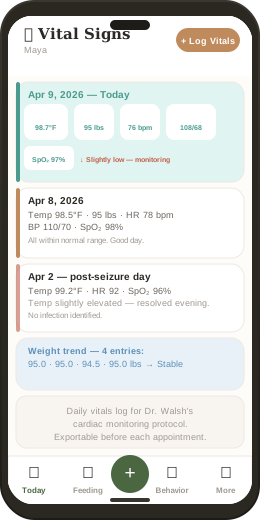
Log temperature, weight, pulse, blood pressure, and SpO₂ with timestamps. Designed for medically complex individuals whose care teams routinely request home vital monitoring.
Logging vitals
- Go to the Vitals tab and tap + Log Vitals
- Fill in whichever fields are relevant — all are optional
- Add a notes field (e.g., "post-seizure day" or "before appointment")
- Tap Save
🏥 Dr. Visits
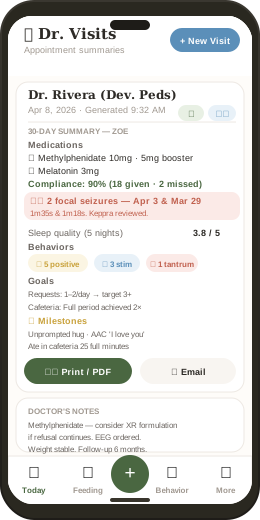
Dr. Visits auto-generates a 30-day summary from your logged data — medications, compliance rate, seizures, sleep quality, behaviors, vitals, IEP goals, wins, triggers, and milestones. Tap any appointment to open its summary, take live notes during the visit, record audio, and export as PDF or email.
Before an appointment
- Go to the Dr. Visits tab and tap + New Visit
- Enter the doctor's name and appointment date
- Tap Generate Summary & Create Visit Record
- The 30-day summary is compiled immediately from your data
- Show the summary to the doctor, print it (via Print/PDF), or email it before the appointment
During the appointment
- Open the visit record and scroll to Doctor's Notes
- Type notes as the doctor speaks — tap Save Notes when done
- Optionally tap 🎙️ Record Appointment to capture audio
- The audio saves to the visit record and plays back with an inline audio player
🩸 Cycle Tracker
A private, discreet cycle tracker for female care recipients. Logs flow heaviness and product used. Visible only when the person's sex is set to Female in their profile. Can be hidden in Settings if not relevant.
📬 Communication Log
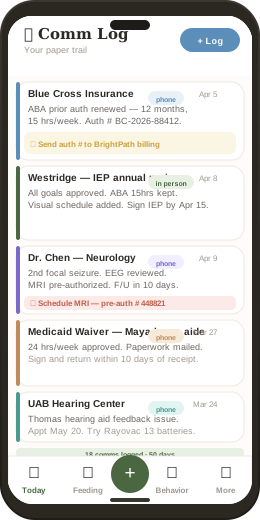
Every call to insurance, email to the school, meeting with the care team — documented with date, contact, channel (phone/email/in person/letter/portal/text), topic, outcome, and action items. Your paper trail is your power.
Logging a communication
- Go to the Comm Log tab and tap + Log
- Set the date and select the channel (phone, email, etc.)
- Enter the contact name, topic, outcome, and any action needed
- Tap Save to Log
Action items
The Action Needed field appears highlighted in amber on each entry. This is your follow-up tracker — "Send auth # to billing," "Sign IEP by Apr 15," "Schedule MRI."
🎯 IEP & Goal Tracker
Store every IEP, 504, or therapy goal with its baseline measurement and target. Log home practice sessions. Track current progress. Walk into every IEP meeting with weeks of documented home data.
Adding a goal
- Go to the Goals tab and tap + Add Goal
- Write the goal text exactly as it appears in the IEP document
- Enter the baseline (where the child was when the goal was written)
- Enter the target (what success looks like)
- Add any notes for context
- Tap Save Goal
Logging a practice session
- Tap + Log Practice Session on any goal
- Enter the current progress level ("2 requests today," "6 of 8 steps independently")
- Add session notes
- Tap Log Practice
Each goal shows its last practiced date and current progress. Practice logs are included in Dr. Visit summaries.

📅 Schedule
A personal appointment calendar for therapy sessions, medical appointments, school meetings, and anything else on the care calendar. Each appointment can have a provider name, time, date, recurrence, and notes.
Adding an appointment
- Go to the Schedule tab and tap + Add Appointment
- Enter title, provider, date, time, and recurring pattern if applicable
- Add notes (what to bring, what to ask about)
- Tap Save
Appointment → Dr. Visit summary
Tap any schedule item to generate a Dr. Visit summary. The summary pulls 30 days of logged data and presents it ready to show or print at the appointment.
👥 Your Team
A contact directory for everyone involved in the person's care — therapists, doctors, teachers, school aides, family members, and emergency services. Team contacts appear in handoff reports. Emergency contacts appear in the SOS view and on the EAP card.
Adding a contact
- Go to the Team tab and tap + Add Contact
- Enter name, role, icon emoji, phone, and email
- Toggle On Team to include them in care reports
- Toggle Emergency Contact to include them in SOS and EAP
- Add custom fields for anything else (school, room number, specialty)
Context menu
Long-press any contact card to: Edit, Share with them, Add/Remove from SOS, Add/Remove from Team, or Remove.
📈 Growth & Insights
Visual trend charts for medication compliance, positive wins, and behavior frequency over 4 weeks. Also shows streak and XP, recent milestones, and today's stats summary.
- Med Compliance — percentage of doses given vs. scheduled
- Positive Wins — count of ⭐ Win entries per week
- Behaviors (↓ good) — tantrum/meltdown count (lower is better)
- Tap any chart header to expand it for a taller, more detailed view
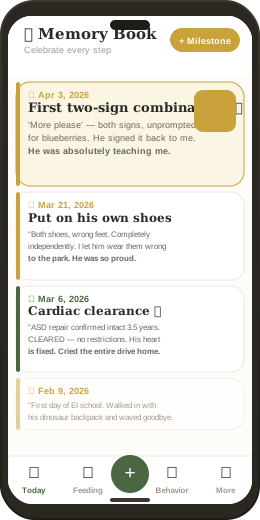
🌟 Memory Book
A positive-only section for developmental milestones. Every entry has a title, full narrative, date, and optional photo. Displayed as beautiful gradient cards in reverse chronological order.
Adding a milestone
- Go to the Milestones tab and tap + Add Milestone
- Write a short title ("First unprompted hug 💜")
- Write the full story — as much detail as you want
- Optionally attach a photo
- Tap Save to Memory Book ✨
💡 Cue Guide
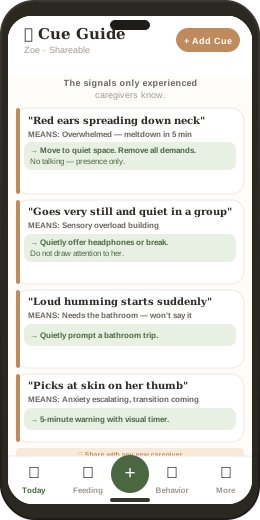
A per-person dictionary of behavioral and non-verbal signals — the things only experienced caregivers know. Each entry has the cue, what it means, and exactly what to do. Shareable in one tap with anyone new in the person's life.
Adding a cue
- Go to the Cue Guide tab and tap + Add Cue
- Describe the cue precisely ("Red ears spreading down her neck")
- Describe what it means ("Overwhelmed — meltdown likely in 5 minutes")
- Describe exactly what to do ("Move immediately to quiet space. Remove all demands. No talking — presence only.")
- Tap Save Cue
🚨 SOS Emergency
The SOS view shows emergency contacts in order, with one-tap call buttons. Pre-loaded with 911, Poison Control (1-800-222-1222), Crisis Text Line (text HOME to 741741), and the 988 Suicide & Crisis Lifeline.
Customizing SOS
- In the Team tab, mark any contact as Emergency Contact to add them to SOS
- The order in SOS matches the order you added them — your most important contact first
- Tap the 📞 icon next to any contact to call
- Tap 📋 EAP Card to open the Emergency Action Plan
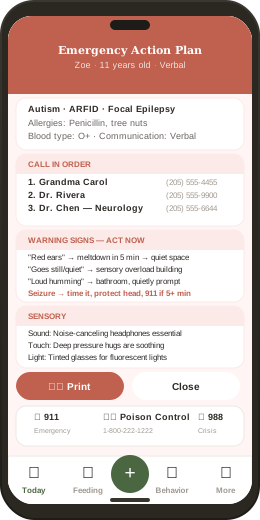
📋 Emergency Action Plan (EAP)
A one-tap printable card that compiles everything an emergency responder, substitute caregiver, or ER nurse needs to know. Built entirely from data already in your profile — no extra data entry.
What's on the EAP card
- Name, age, diagnoses, communication method
- Allergies and blood type
- Emergency contacts in order
- Behavioral warning signs (from the Cue Guide)
- Sensory profile notes
- Seizure history warning and protocol (if applicable)
- Emergency hotlines
To access and share
- Go to the SOS tab and tap 📋 EAP Card
- Show the screen to anyone who needs it
- Tap 🖨️ Print to save as PDF or print physically
🧘 My Wellbeing
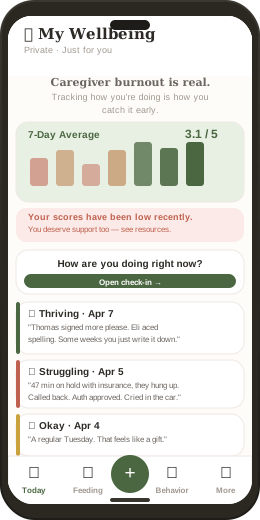
A private daily check-in for the caregiver — not the person in your care. Rate your day on a 1–5 scale (😔 Struggling → 😊 Thriving) with an optional note. A 7-day trend chart shows your pattern. When your average stays below 3, the app gently surfaces caregiver burnout resources.
Using it
- Go to the My Wellbeing tab
- Tap How are you doing right now?
- Tap your current level
- Add a note if you want to
Entries are never included in handoff reports or exports. They exist only on your device, for you.
🔍 AI Knowledge Features
CareHaven includes an AI-powered knowledge search for medication information, care guidance, sensory strategies, feeding approaches, behavior support, and more.
Using the Ask view
- Go to the Ask tab (🔍 in the bottom bar or More menu)
- Type your question in plain language
- Tap Search
- The app checks its built-in knowledge base first. If not found, it sends an anonymized query to the AI (Grok primary, OpenAI fallback)
Privacy during AI queries
Before any text leaves your device, the app programmatically strips personal identifiers — names, dates of birth, specific medication doses, and identifying details. The AI provider receives an anonymized question. Your care data never leaves your device.
What AI can and cannot do
- ✅ Explain medications in plain language
- ✅ Suggest sensory strategies for specific situations
- ✅ Provide guidance on behavior support approaches
- ✅ Explain feeding therapy techniques
- ❌ Diagnose conditions
- ❌ Recommend starting or stopping medications
- ❌ Replace professional clinical judgment
Display & Text Settings
- Text Size — Normal, Large, or Extra Large. Affects all text throughout the app.
- Color Theme — Light, Dark, or System (follows your device setting). Also toggled from the 🌙 button in the header.
- Color Vision Mode — Normal, Protanopia, Deuteranopia, or Tritanopia. Adjusts the color palette for color blindness.
- Timeline Window — Today, 3 Days, or 7 Days. Controls how far back the home timeline shows entries.
- Show Bottle Tracking — Shows a separate bottle log in the Feeding tab (in oz).
- Bottom Nav Customizer — Reorder and change which features are pinned to the bottom bar.
Privacy & Data Settings
- AI Knowledge Features — Enable or disable all AI-powered features. When disabled, no queries leave your device.
- Anonymous Usage Analytics — Opt-in to share anonymous feature usage data (not content) to help improve the app.
- Demo Data — Toggle the demo data on or off. Your real data is preserved and restored when you turn demo off.
- Export All Data — Download a complete JSON export of all your data.
- Clear All Data — Permanently delete everything. Cannot be undone.
Security & Backup
PIN Lock
Set a 4-digit PIN to lock the app. The PIN screen appears on launch and after the app has been in the background. Useful in medical settings and school meetings where the device might be seen by others.
Backup Password
- Go to Settings → Security → Backup Password → Set
- Enter a password you'll remember
- Tap Save Password
- The password is stored securely on this device. It is required every time you create or restore a backup.
Creating a backup
- Settings → Privacy & Data → Create Encrypted Backup
- Enter your backup password
- A .chbak file is created and offered for sharing via your device's share sheet
- Save it to iCloud Drive, Google Drive, email it to yourself, or AirDrop it
Restoring a backup
- Settings → Privacy & Data → Restore Backup
- Select your .chbak file
- Enter the backup password
- All data is restored exactly as backed up
Person Profiles
Tap the person pill in the top-right of any screen to open the Person Sheet. Tap Edit to modify:
- Name — displayed throughout the app
- Color accent — choose from a color picker. Appears on their pill, timeline border, and person card.
- Date of birth — age is calculated automatically
- Sex — shows/hides the Cycle Tracker
- Diagnoses — comma-separated list. Used in Dr. Visit summaries and EAP card.
- Primary communication method — verbal, AAC, sign language, PECS, or mixed
Deleting a person
In the Person Sheet, scroll to the bottom and tap Remove [Name]. This permanently deletes all their data. Cannot be undone (unless you have a backup). Only available when 2+ people are in the app.
✨ Tips & Creative Uses
CareHaven is more than a log — it's a pattern-discovery tool, an advocacy instrument, and an institutional memory for your family's care. Here are uses that go beyond the obvious.
The behavior-environment map
For one month, add a note to every Trigger entry describing the physical environment: lighting, noise level, how many people were present, time of day, recent activity. After 20–30 entries, patterns emerge that no clinical observation session could capture. "Triggers cluster in the 45 minutes before lunch in fluorescent environments" changes an OT's approach entirely.
The caregiver shift log
If two parents split caregiving shifts, use the Diary to write a brief handoff note at each transition. After 3 months you have a written record of what's working on each person's watch. Patterns emerge (mornings better with one parent, evenings with the other) that can be analyzed rather than argued about.
The medication experiment
When a medication is changed, create a diary entry marking Day 0. Log behavior, sleep, feeding, and regulation daily for 4 weeks. On Day 28, compare your 4-week charts to the pre-change baseline. You have objective data on whether the medication change improved outcomes — not an impression, a record.
The school year arc
Log regulation at the same time every school day (right after pickup). After 8 weeks you'll see whether regulation is improving as the year progresses, or declining as demands increase. The 3-Day timeline view makes week-over-week comparison visible at a glance. Bring this chart to the mid-year IEP check-in.
The milestone reverse calendar
When you feel like nothing is progressing, open the Memory Book and scroll to the oldest entry. Then read forward to today. This is the progress you've forgotten. The Memory Book works as a timeline of growth that the rest of the app — focused on problems — doesn't show you.
The seizure trigger investigation
After 4+ seizures, review the pre-seizure notes field for each one. Ask: what did they eat in the 12 hours before? How had they slept? Was there illness? Was the medication given on time? Were there stressors? Write your hypotheses in the Diary. Bring both the seizure log and your hypothesis list to neurology.
The insurance battle file
Every call with insurance gets a Comm Log entry: date, rep name (if given), what you were told, reference number, and what the outcome was. When an insurance company denies a claim they previously approved, you have a timestamped record of the prior approval conversation. This is the difference between losing and winning an appeal.
The sleep-behavior correlation proof
Export the 4-week Growth chart as a screenshot when it shows the behavior trend and sleep trend together. If they move together (poor sleep weeks = higher behavior weeks), this is correlation evidence for a psychiatrist who may not be considering sleep as a behavior driver. Screenshots are evidence; opinions are not.
The respite packet
Before any new respite provider starts, generate three things: a screenshot of the Routines tab (their daily schedule), a screenshot of the Cue Guide (the signals only experienced caregivers know), and the EAP card. This three-page packet replaces an hour of verbal orientation. They arrive prepared.