Advocacy & goals
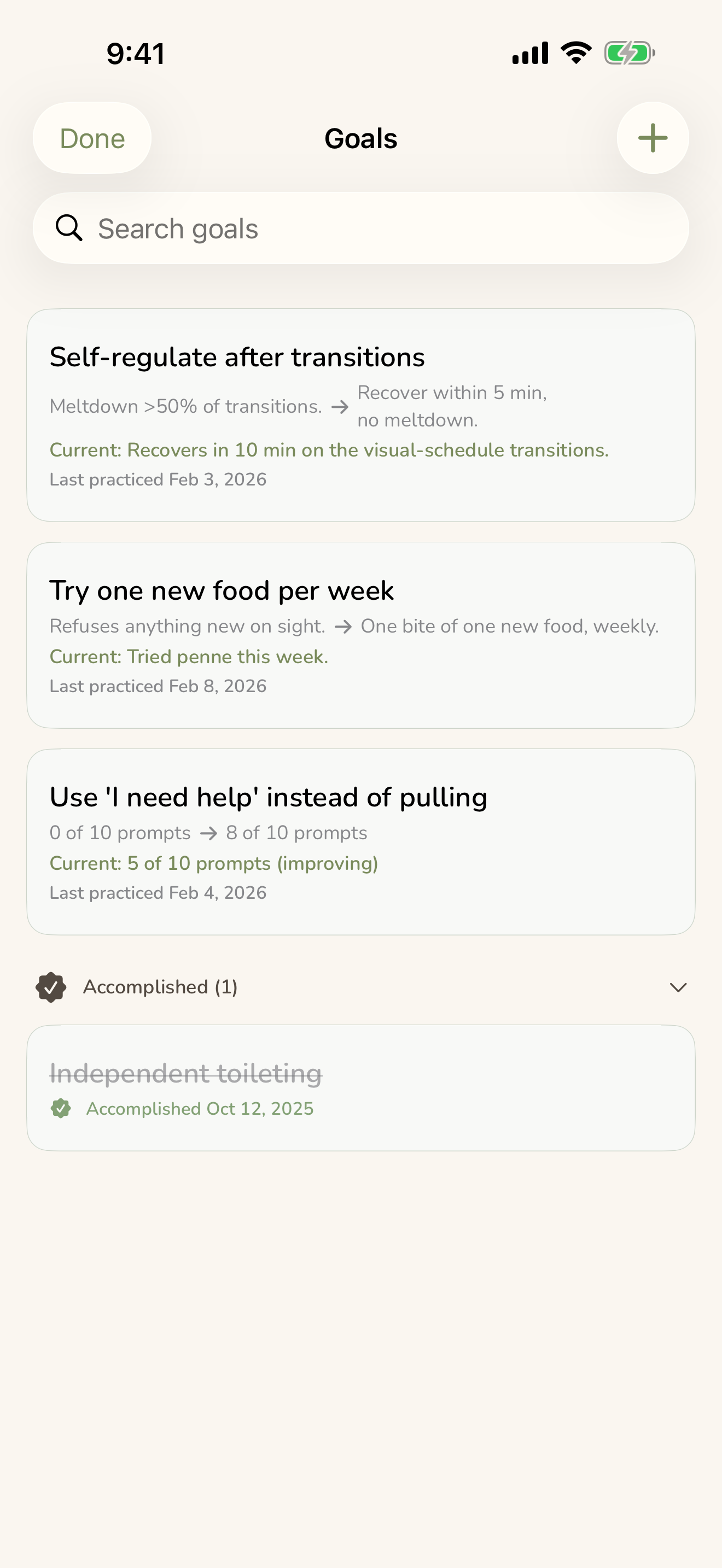
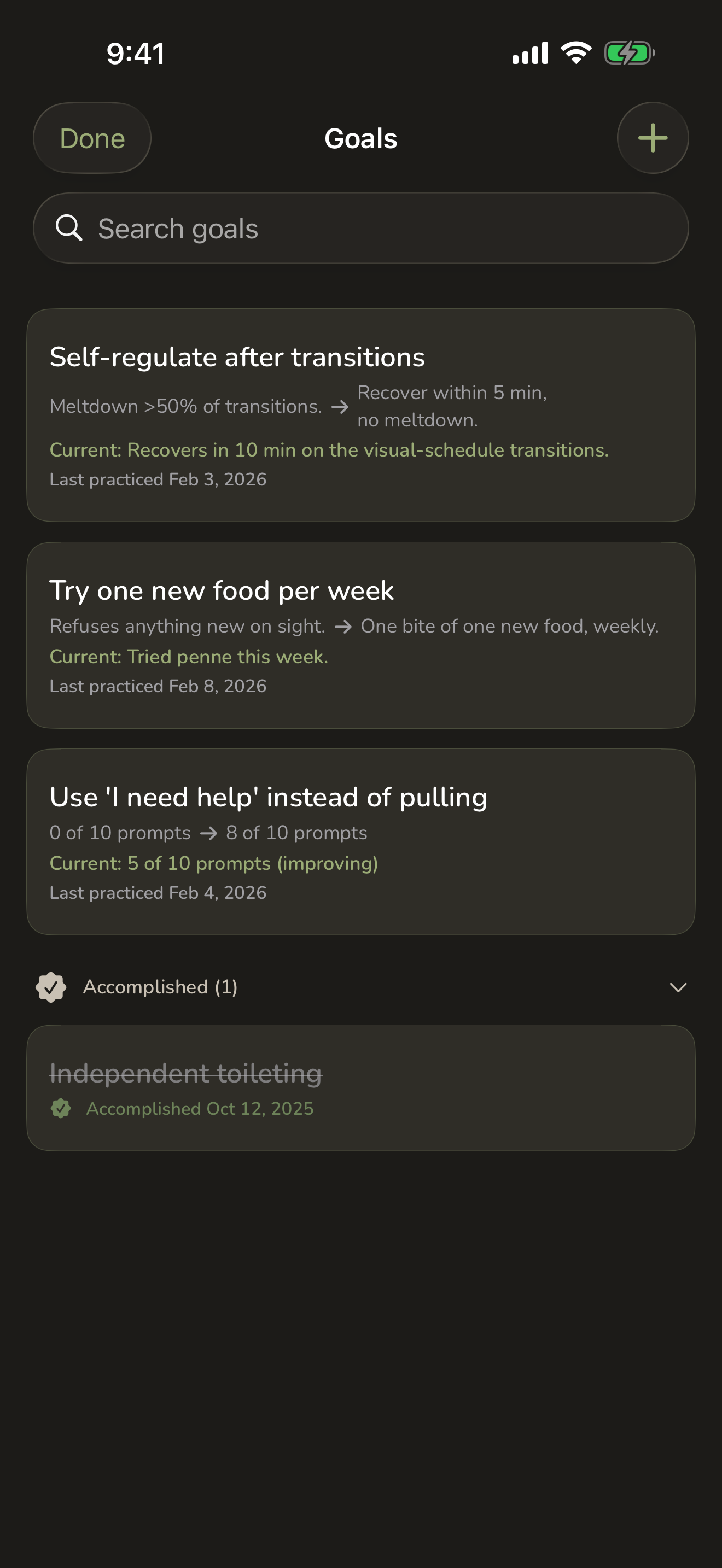
When you care for someone with complex needs, a lot of your time goes to the world around them — schools, therapists, doctors, insurance, the people who step in to help. CareHaven gives you a calm place to hold all of it. You track the goals they're working toward, save the wins, write down the signals only you understand, and keep a clear record of every conversation. The point is simple: when you sit down at an IEP meeting or a doctor's visit, you have the facts on your side.
On this page
Everything on this page lives under the Advocacy area and stays on your device.
Goals (IEP-style)
Available
A goal is something your person is working toward — an IEP goal, a 504 goal, a therapy target, or one you set yourself. CareHaven keeps each goal with its starting point and its target, so progress is something you can show, not just describe.
For each goal you can:
- Write the goal text exactly as it appears in the plan.
- Enter the baseline — where they were when the goal was written.
- Enter the target — what success looks like.
- Add notes for context.
- Attach a photo, like a page from the plan or an evaluation report. Tap the thumbnail to see it full-screen.
Logging practice at home
Open any goal and log a practice session. You note the current progress in plain terms ("2 requests today," "6 of 8 steps on their own") and add a few session notes. Each goal then shows when it was last practiced and where things stand now.
This is what changes the conversation at a meeting. Instead of "we feel she's progressing," you can say "here are fourteen documented practice sessions over the past month." Your home-practice data is data the school team usually doesn't have. Practice logs also feed into your doctor-visit summaries.
Pulling goals from a scanned IEP
You don't have to type a long IEP by hand. CareHaven can read a scanned IEP, school report, or evaluation letter and turn it into structured goals you review and save.
When you scan a document, CareHaven sorts what it finds into goals, accommodations, follow-ups, medications, and appointments, and shows you a checklist. Everything is pre-selected, so you just uncheck anything you don't want and save. The reading happens on your device, and names are removed before any of it is processed. For the full walkthrough, see Scan an IEP or doctor letter.
Milestones
Available
Milestones are for the wins. For a child with complex needs, a milestone might come slowly and look small to the rest of the world — and be enormous to your family. Those moments get lost in the camera roll within weeks. Here they're kept with their story.
Each milestone has a short title, the full story in as much detail as you want, a date, and an optional photo. They show up as cards, newest first.
A gentle idea: write some entries as if you're telling the story to your person when they're older. "You were eleven, and you ran up and hugged grandma without anyone asking. It was the first time. We all cried." Years from now, that's a gift.
The Cue Guide
Available
The Cue Guide is a private dictionary of the signals only experienced caregivers know — the things that, if a new sitter or aide understood them, would change the whole day. Each entry holds three parts: the cue, what it means, and exactly what to do.
To add a cue:
- Open the Cue Guide and add a cue.
- Describe the cue precisely — "red ears spreading down her neck."
- Describe what it means — "overwhelmed, meltdown likely in about five minutes."
- Describe exactly what to do — "move to a quiet space, remove all demands, no talking, just presence."
- Save it.
You don't need ten entries to make this useful. Start with the one cue that prevents the worst outcome, then add the next most important. When a new aide or sitter starts, share the Cue Guide right away — "red ears means quiet space in five minutes" can prevent a meltdown that would otherwise derail an entire day.
Optional help filling cues in
Available
If you'd like a hand, CareHaven can suggest a meaning and a response from the cue description you wrote. It's a starting point you edit, not a verdict — you always have the final word. This runs on your device. See Smart help (Apple Intelligence) for how that works.
Picture illustrations
Available
You can generate a simple, AAC-style illustration for a cue right on your device, so a card can carry a picture as well as words. These are made on the phone and stay there.
Communication Cards
Available
For a person who can't always speak, CareHaven includes an AAC-style communication-card builder — cards that show a phrase with a picture, so they can point to what they want, feel, or need. You assemble and curate these cards yourself.
To build out a set:
- Open the Communications area and add a card.
- Type the phrase, or pick from the starter vocabulary — a built-in library of common AAC words, sorted into everyday categories like core words, yes/no, feelings, foods, drinks, people, and places. Tap a word to add it; words already in your library are marked so you don't double up. On the core list you can add the whole anchor set in one tap.
- Give the card a picture — a photo from the camera, or a simple illustration generated on your device.
- Group your cards into boards, one per situation: one for mealtime, one for school, one for a doctor visit. Keeping each board small and focused is what makes it usable in the moment.
Tap a card to play its phrase aloud. If you've set up Personal Voice on the phone, the cards speak in that voice; otherwise CareHaven uses a standard iOS voice. See Smart help (Apple Intelligence) and Make it yours for the voice and on-device pieces.
When you need a version that works without a phone — for a sitter, a classroom, or a non-tech caregiver — you can export a board as a printable Communication Card PDF. For how that export and CareHaven's other shareable documents work, see Sharing & reports.
A gentle word: start with one board for the situation that frustrates your person most, usually mealtime or transitions. Adding too many cards too fast turns the tool into an obstacle.
Communication Log
Available
Every call to insurance, every email to the school, every meeting with the care team — written down with the date, who you spoke with, the channel (phone, email, in person, letter, portal, or text), the topic, the outcome, and anything you still need to do. Your paper trail is your power.
To log a conversation:
- Open the Communication Log and start a new entry.
- Set the date and pick the channel.
- Enter the contact name, the topic, the outcome, and any action needed.
- Save it.
The Action Needed field stands out in amber on each entry — it's your follow-up tracker. "Send the auth number to billing." "Sign the IEP by April 15." "Schedule the MRI."
A good habit: log a call the moment you hang up, not at the end of the day. Memory fades fast. Hang up, open the app, log it — about a minute. Over months, you build a searchable record of names, dates, and outcomes. When a district reduces services without notice, or an insurer denies a claim it had approved, that record speaks for you.
Reply suggestions
Available
When you're working through an incoming message, CareHaven can offer a couple of tap-to-copy reply suggestions, matched to who you're writing to. You stay in control of what actually gets sent — the suggestions are there to save you a blank-page moment. They're drafted on your device, and names are removed before anything is processed. More on this in Smart help (Apple Intelligence).
Visit Prep
Available
Visit Prep helps you walk into an appointment ready, with the right talking points and questions in hand instead of trying to remember everything in the moment.
Related to this, CareHaven can build visit briefs from the data you've already logged — plain summaries for a neurology or psychiatry visit, a "what's changed" overview, a mealtime summary, and a developmental or therapy review. These are put together straight from your records, with no guesswork added, and you can read them aloud or share them. They're a calm way to show a clinician two months of seizure frequency or a clear picture of how a skill is coming along — in seconds, not from memory.
Visit Prep and the visit briefs are part of the special-needs toolset, so they're hidden if you turn on General Caregiver Mode. You can read more about that in Make it yours.
Where this fits
- The goals, accommodations, and follow-ups that come out of a scanned document start here — see Scan an IEP or doctor letter.
- Doctor visits, vitals, and documents live in Medical.
- When you're handing off to a sitter or aide, your cues and key context travel with them — see Caregiver tools and Create a handoff for a sitter.
- To pull a shareable summary for an IEP or a clinician, see Sharing & reports.
- The smart, on-device help behind cue suggestions and reply drafts is covered in Smart help (Apple Intelligence).