Support tailored to a diagnosis
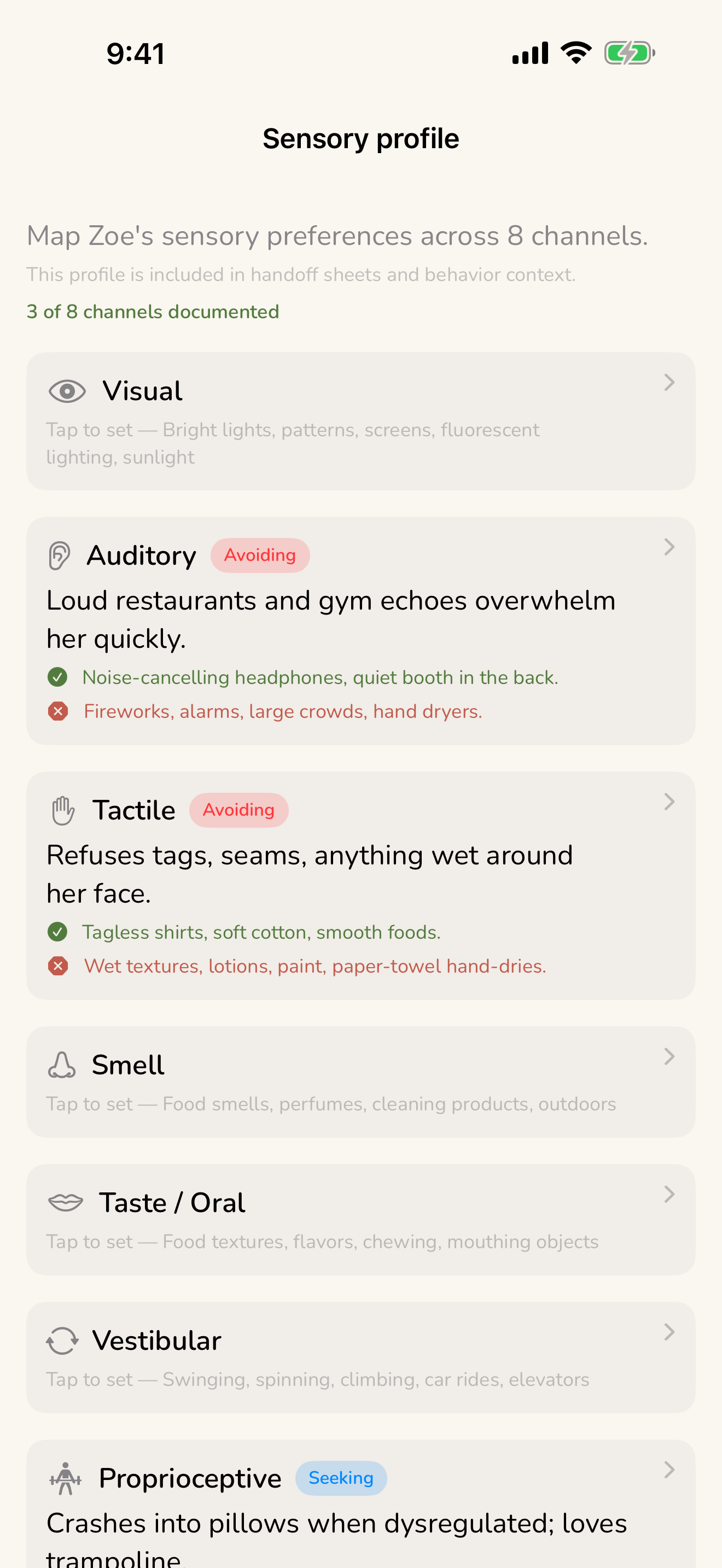
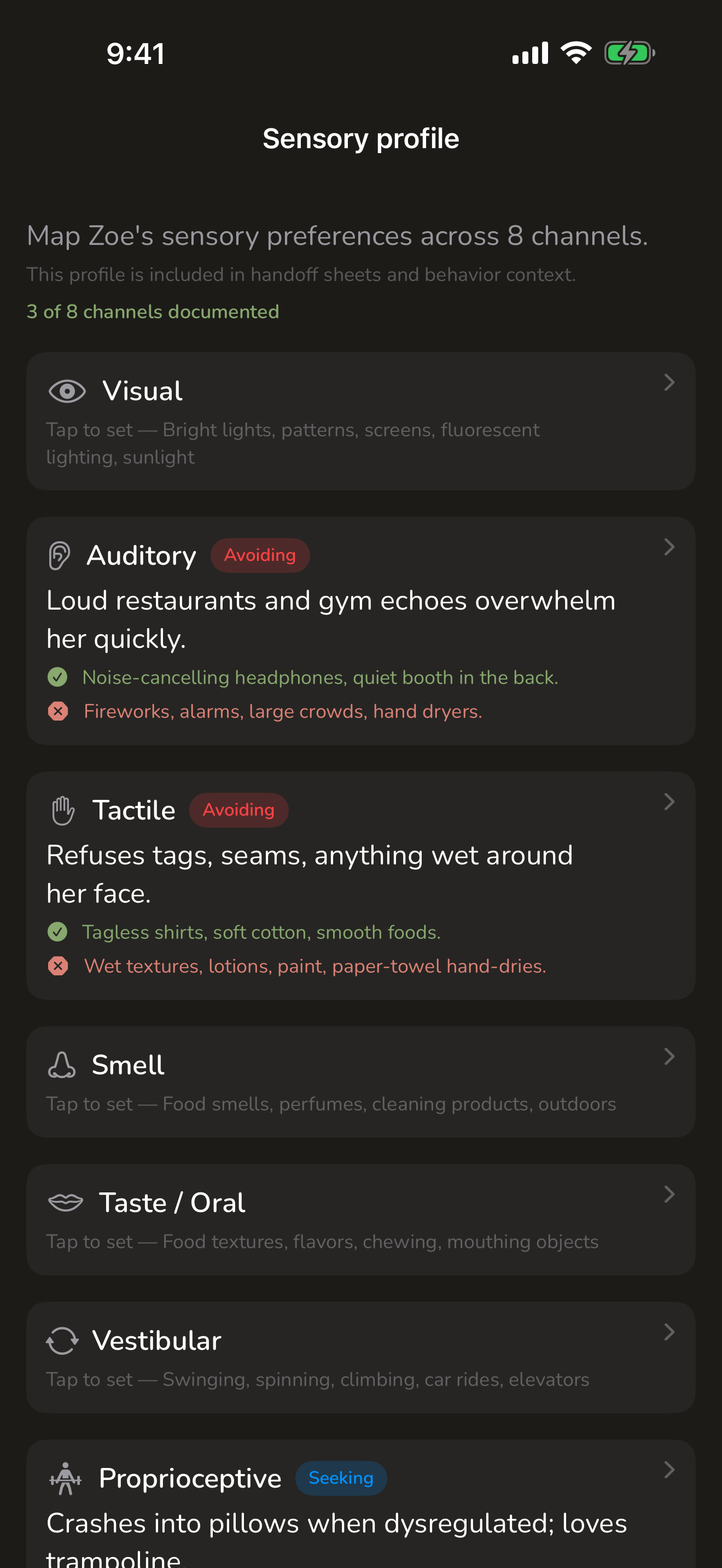
CareHaven serves families caring for someone with many different needs — autism, ADHD, epilepsy, cerebral palsy, Down syndrome, a feeding disorder, dementia, and more. No single family lives with all of those at once. So the app quietly reshapes itself around the conditions your person actually has, and keeps everything else out of your way.
On this page
This page explains how that works: how to tell the app about a diagnosis, the calm "where to start" guides for when something is new, the way certain conditions tailor a tracker or surface a plain-language card, and a dignified run-mode for teaching a skill or therapy routine one step at a time.
One promise underneath all of it: the app never implies a diagnosis your person does not have. Adding a tracker or logging something turns on the tool, not a label.
Telling the app who your person is
You set up a separate profile for each Person you care for, and you can keep up to twelve. When you add a diagnosis to a profile, the app does the rest.
In the profile, type a diagnosis and the app suggests matches as you go — it recognizes the condition by its everyday name, common short names, or its clinical code. CareHaven bundles a set of caregiver-voice diagnoses spanning developmental, behavioral, mental-health, feeding, neurological, geriatric, chronic, and genetic categories. If what you type is not in the list, it still saves as plain text. Available
Tap any diagnosis anywhere in the app — in a profile, a sitter handoff, an emergency card — and a sheet opens with a plain-language explanation of what it is and what it means, plus the codes a clinician uses on paperwork. Available
CareHaven does not diagnose. Everything it shows about a condition is reference text for you to bring to your care team, never the app's own medical direction. Every detail sheet says so.
Once a profile has an age and a diagnosis, other parts of the app can do more for you — recommended health checks, growth context, and tailored guidance all key off those two facts. See Medical.
"Where to start" when something is new
A new diagnosis can feel like standing at the bottom of a mountain. The Newly-Diagnosed "Where to start" companion is built for exactly that moment. It is a short set of calm, plain-language guides — reassurance, sensible first steps, what to expect, and questions worth bringing to your team — for the conditions CareHaven supports most deeply. Available
It also does one practical thing for you: a single tap brings the parts of the app that fit this person's diagnosis to the surface, so you are not hunting through features meant for someone else's loved one.
You will find "Where to start" in the caregiver tools. See Caregiver tools.
How a condition tailors what you see
CareHaven shows the tools and tips that match your person's situation and hides the rest. A few examples of that tailoring you can see today:
Down syndrome milestone calibration
General developmental milestone charts can be discouraging for a child with Down syndrome, because they are drawn from the whole population. For a profile with Down syndrome, CareHaven shows Down-syndrome-specific developmental ranges right alongside the general-population ranges, so progress is measured against a fair, realistic picture rather than against a curve the child was never on. Available
Growth percentiles carry the same honesty. CareHaven calculates them on your device from the measurements you log, and shows a plain caveat noting that some conditions — Down syndrome, cerebral palsy, prematurity — can track along their own steady curve, well above or below the average band, and that this can be perfectly healthy. The trend over time is what matters, not a single number. See Medical.
Recommended health checks that fit the person
Different conditions come with different recommended check-ups at different ages — thyroid and hearing checks with Down syndrome, hip x-rays and tone treatment with cerebral palsy, a medication review for an older adult. CareHaven's Health Watch seeds a sensible set of recommended checks based on the person's age and recorded needs, in plain language, and keeps them in one calm place so nothing quietly lapses. It is reminders only, never medical advice, and never a red overdue wall. See Medical. Available
Dementia and elder care
For dementia and elder care, CareHaven brings together memory-care tracking, behavior episodes, PAINAD pain observations, Mealtime Watch, scripts for hard moments, advance directives, the Letter of Intent, What Helped rollups, night capture, and doctor-ready summaries. The roadmap continues with a prepared wandering response and early-stage decision support. See Dementia & elder care. Available
Plain-language guidance cards for certain conditions
For some conditions, CareHaven surfaces a short, cited "what to watch for" card in the most relevant part of the app — gentle signs worth noticing and everyday steps that help, framed as what a clinician watches for, with no jargon and no diagnosis. Cards available today include:
- A swallowing-trouble card for a person on a texture or thickness order, and a Parkinson's "what to watch for" card in the Body Care area, with day-to-day tips that also carry into a sitter handoff. Available
- An epilepsy "what to watch for" card in the Medical area, gathering seizure warning signs along with tracking, trigger, and rescue-medication tips, and linking straight to seizure first aid. See Medical. Available
These cards appear only when they fit. On a person without that condition, the card stays out of the way.
When you want fewer special-needs surfaces
Not every caregiver wants the full set of special-needs tools. General Caregiver Mode is an opt-out toggle that hides the special-needs-specific surfaces, leaving a calmer, more general care app. You can turn it on or off whenever you like. See Make it yours. Available
Skill and therapy routines
Teaching a skill — brushing teeth, getting dressed, a home stretch program, a step-by-step food exposure — is slow, repetitive work, and it is easy to fall into the trap of "it's faster if I just do it myself." Skill routines are built to break that trap and to make slow progress visible. You will find them in the Care Plan hub under Skill routines. Available
Build a routine
Open Skill routines and add a new one, picking a kind — a skill builder, a stretch-and-move program, a food ladder, or a growing-up independence routine. Give it a name, like "Brush teeth," then add the steps in order. Each step can carry a short spoken cue that the app reads aloud during the routine. You also set the current help level — how much prompting they need right now, from hands-on help up to fully independent.
Run mode: one calm step at a time
When it is time to practice, open the routine and tap Start. This is the dignified part: one big step shows at a time, with a giant Next button, and with the volume up each step's cue is read aloud. You can replay any step's cue. At the end there is a warm "All done."
Then, privately — just for you — the app asks how much help each step needed, with three equal, encouraging choices: We did it together, A little help, or All by myself. There is no red, and no notion of failing.
Watch the help fade over time
Run the routine across different days and the routine's detail screen quietly builds a picture of progress: a gentle streak showing how many days in a row you have shown up, and an "on their own" rate that climbs as you mark more steps "All by myself." Each run is stamped with the help level at the time, so the trend stays honest even as your person needs less.
The help level always moves by hand, by you — the app never advances it on its own. After a few runs, a small guidance card may offer a gentle thought: that they seem ready to ease up to a lighter prompt, that one particular step has stalled and might need a new angle, or that they needed more help than usual lately and it is worth checking the everyday things first — sleep, illness, a missed meal, a big change. It is a suggestion to consider, never an instruction.
It travels with you
Skill routines ride along where they are useful. A sitter handoff now includes how much help each routine needs, so a backup caregiver gives the right level of prompting — not too much, not too little. A developmental and therapy review brief summarizes how each skill is fading, ready to bring to an occupational therapist, physical therapist, or an IEP meeting. And the progress is included in your encrypted backup, so it is never trapped in one place. See Caregiver tools and Sharing & reports.
A few extras for skill routines are on the way as a fast-follow — per-step photos, linking a routine to a goal, an Apple Watch view, and a Home reminder card. Until then, a calm symbol stands in for a step photo. Coming soon
More tailored support is coming
CareHaven's plan is to grow deeper support for each condition over time. Many condition-specific tools are on the roadmap and not yet built — for example: situation stories and a sleep-routine builder for autism; a daily report card, a reward board, and a medication coverage timeline for ADHD; trigger capture, a doctor-ready seizure video, and a postictal recovery check-in for epilepsy; a brace-and-skin check and a therapy-and-specialist map for cerebral palsy; a transition-to-adulthood planner and skill snapshots for Down syndrome; a benefits keeper for intellectual disability; and the deeper dementia and elder-care tools listed in Dementia & elder care. Planned
When any of these ships, it will show up only on the profiles it fits — the same quiet, condition-aware way the app works today. To follow what is coming, see Known limitations & what's coming and What's new.
A note on privacy and honesty
Two principles hold across everything on this page. First, your care data stays on your device, and only a condition's code — never your person's name or any personal detail — is ever sent for a plain-language explainer lookup. See Privacy & security. Second, the app recognizes and routes; it never decides. Calibration tells you what is realistic for a condition, but anything safety-related is framed as what a clinician watches for, and the dedicated emergency tools — first aid, crisis plans, the emergency screen — own the real thresholds and steps. See Safety & crisis plans.