Walkthrough: Create a handoff for a sitter
When someone else steps in — a partner taking the next shift, a grandparent for the weekend, a paid sitter — you shouldn't have to recite everything from memory. A handoff packet gives the incoming person a calm snapshot of today and what to watch for, so you can hand over the phone-in-your-head instead of carrying it. Available
On this page
This walkthrough builds one from start to finish.
What's in a handoff
CareHaven fills the packet from what you've already logged, organized into sections the next person can skim:
- TODAY — the recent rhythm of meals, sleep, behavior, and moments.
- CUES — the signals this person gives and what they mean.
- EMERGENCY — the do-this-now essentials and who to call.
- MEDS — what's given and when.
- CONTEXT — what's going on right now (active life changes).
- UPCOMING — the next couple of days of appointments.
If you've filled in a sensory profile or any skill routines, those ride along too, so a sitter knows what calms this person and how much help to give. Available
Step 1 — Open Handoff
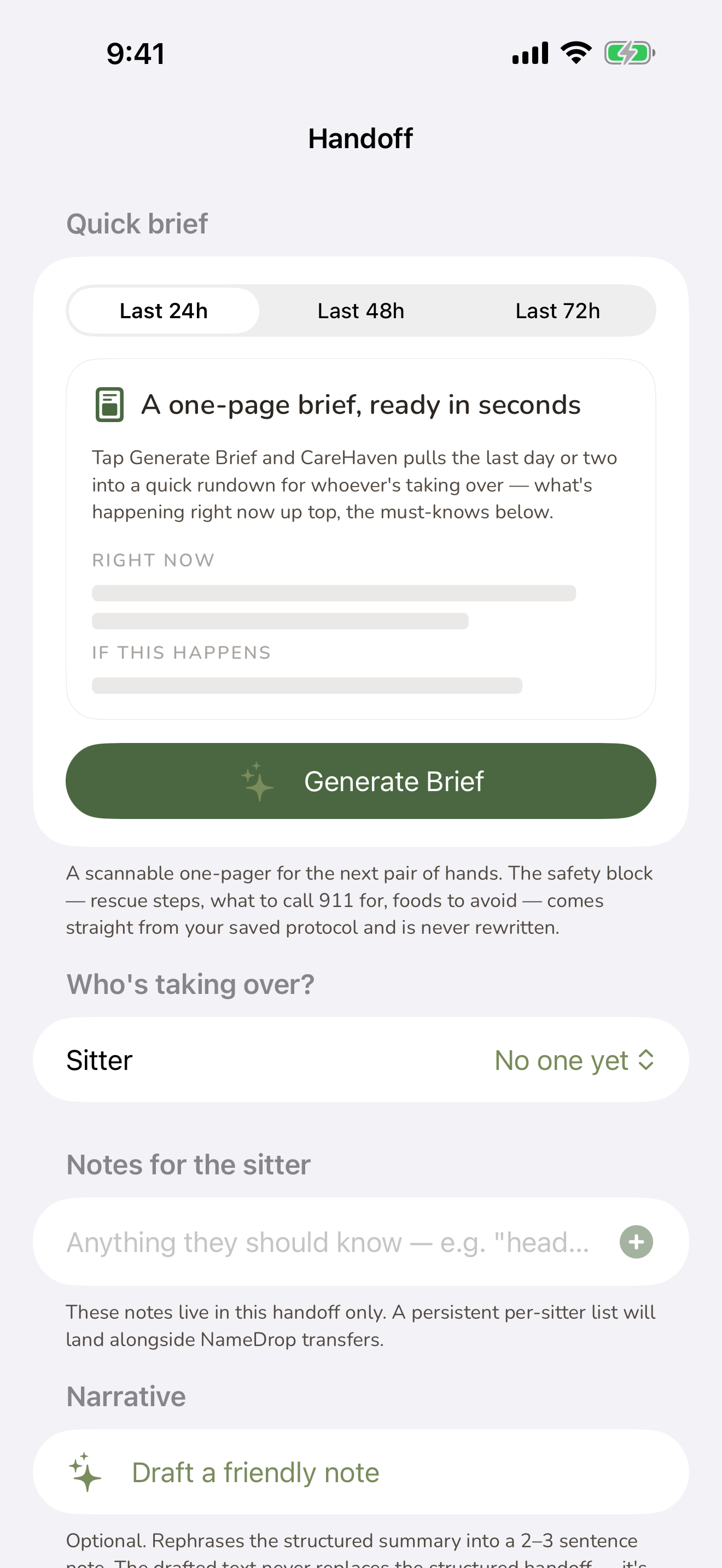
Open Handoff from the menu. You can also reach it from the Team & Coordination area and from Take a break.
Make sure the person at the top of the screen is the one you're handing off — the packet is built for whoever is currently selected.
Step 2 — Pick the time window
Choose how far back the snapshot should reach: the last 24, 48, or 72 hours. A single overnight usually wants 24; a full weekend handoff is often clearer at 48 or 72.
CareHaven fills the brief from what you've logged in that window. You don't write it by hand.
Step 3 — Add a friendly summary (optional)
On top of the structured sections, CareHaven can draft a short, warm two-or-three-sentence note that reads like you took a breath and summed up the day. It's written on-device from today's events, and it only appears if you ask for it. Available
You can keep it, edit it, or leave it off. The structured sections stand on their own.
Step 4 — Pick the sitter and add "tell them" notes
Pick the sitter from the person's contacts. Then add your "tell them" notes — the one or two things you most want the next person to know tonight. ("She's been off her nap, so bedtime may be rough." "Skip the green cup, it leaks.")
These arrive as a small checklist in the shared text, headed with the sitter's name (for example, TELL JAMIE). They live in this handoff only — the next shift starts fresh, so nothing piles up.
Step 5 — Translate it if needed (optional)
If the sitter reads another language more comfortably, you can translate the friendly summary before you share it. Tap the translate option on the narrative and choose a language. Available
This uses your iPhone's built-in translation, so the words stay on your device.
Step 6 — Share it
You have a few ways to get the packet to the sitter, and each one lands a copy in History automatically:
- Hand it to a nearby iPhone (nearby handoff). Tap Send, then bring the other iPhone close so the app can find it. The sitter opens the mini handoff in a lightweight App Clip — a read-only view of the briefing with no app to install. If nearby send is not available, CareHaven keeps the regular share options close by. Available
- Send the text. Use the share sheet to send the handoff as a plain message — by text, email, or however you normally reach them.
- Show a QR code or copy a link. Show the QR code when the sitter is standing with you and can scan it from their phone. Use Copy link when you want to paste it into a message yourself. Closing the QR sheet does not delete the handoff. The link routes back to the handoff instead of a generic screen. Available
- Print or share a PDF. Use Print or share PDF when the next caregiver needs paper, a Files copy, or an email attachment. The PDF includes the handoff brief, who it is for, who should receive it, its issue time, and its expiration time. Available
- Write a fridge sticker (NFC). Tap to write today's briefing to an NFC sticker you keep at home. Anyone who taps an iPhone to it sees the same read-only briefing in the App Clip. Good for a recurring sitter, a respite worker, or staff turnover. Available
Step 7 — Check History later
Open Handoff → History to review past handoffs. Each entry keeps the exact text that went out, so you can see what the last sitter was told. After a few weeks you may notice patterns — which times of day need more notes, which issues keep coming up.
A few things worth knowing
- The packet is a snapshot in time. A nearby handoff or a written sticker holds the briefing as it was when you made it — it doesn't keep updating. If meds, diagnoses, or contacts change in a big way, make a fresh handoff (or re-write the sticker).
- The sitter doesn't need CareHaven, an account, or a sign-in to read what you send.
- A handoff is a briefing, not the emergency card. For the first-ten-seconds essentials a first responder needs, see the Care Card in Safety & crisis plans.
Related
- Caregiver tools (for you) — where Handoff, Take a break, and Share the Load live.
- Sharing care with others (sync) — for co-caregivers who edit the same profile, not just read a snapshot.
- Sharing & reports — the Care Report PDF and other ways to share.
- Across your Apple devices — nearby handoff, translation, and the rest of the Apple integrations.