Smart help (Apple Intelligence)
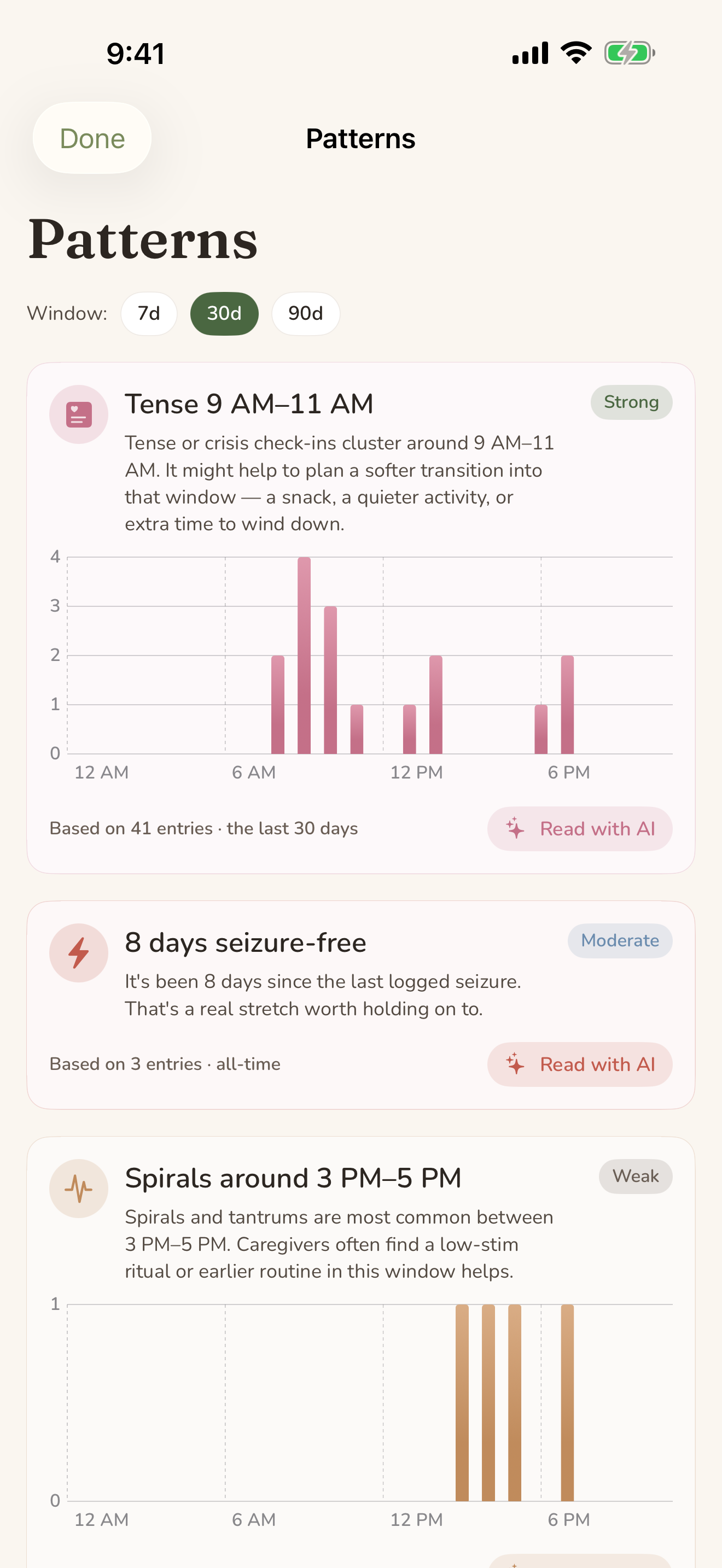
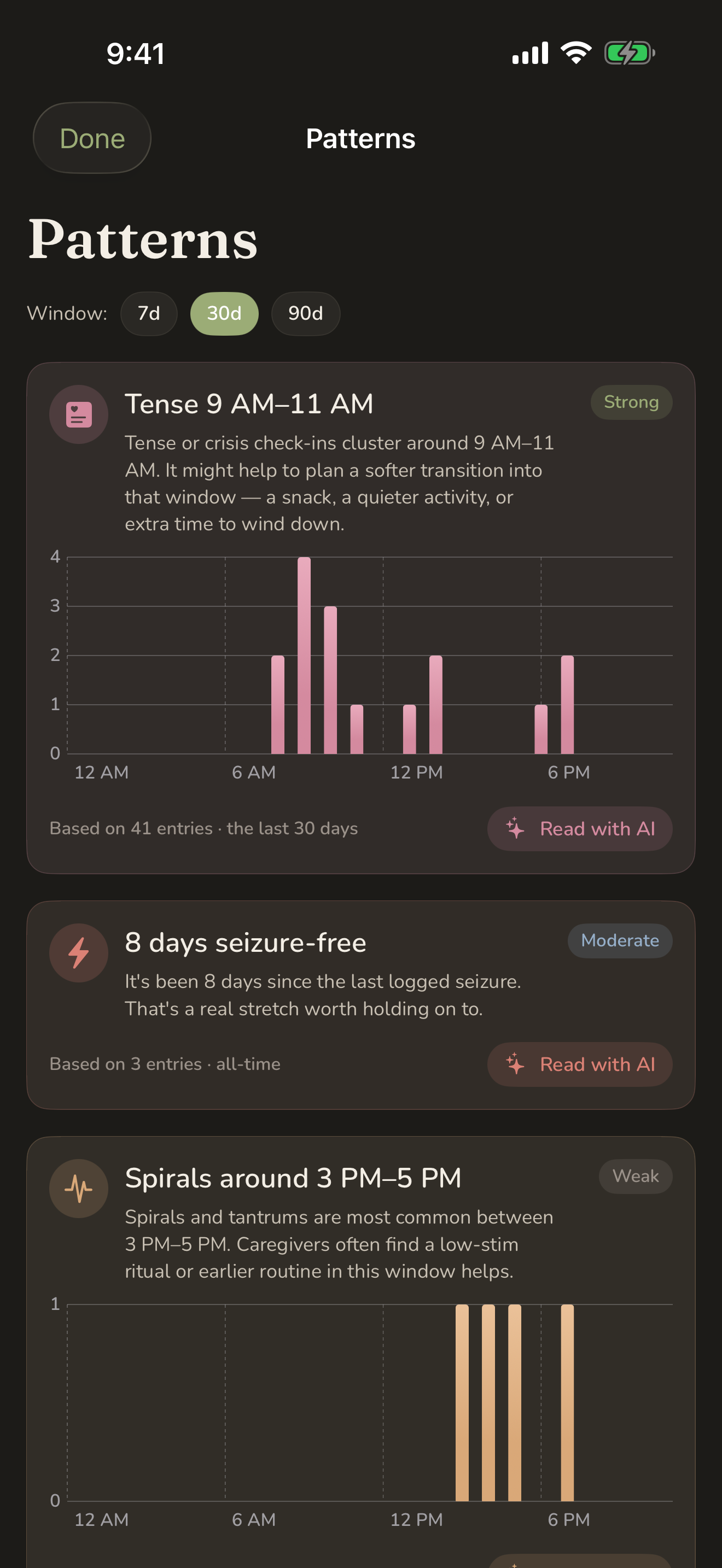
Some of the heaviest parts of caregiving are not the doing — they are the writing-it-up, the noticing, the explaining. CareHaven has a small set of optional smart features that take a first pass at exactly those things, so you start from a draft instead of a blank page.
On this page
These features are helpers, not the app. Every screen, log, and plan in CareHaven works exactly the same whether you ever tap one of them or not.
How it stays private
When you ask for a smart draft, CareHaven tries to handle it right on your phone first, using Apple Intelligence. Available
Before anything is sent, the app removes names — the person you care for, and other personal identifiers — so what leaves your phone is an anonymized request, never your loved one's identity. Your care data stays on the device. Privacy & security (in depth) goes deeper on this.
You will sometimes see a small badge on a result that tells you where the answer came from. On-device means Apple Intelligence handled it right on your phone. Another badge means it came from CareHaven's online helper. An offline badge means it fell back to the answers built into the app. The wording is plain on purpose — you never have to know the machinery.
What it will never do
Every smart feature is built to help you think, not to make medical calls. It will not diagnose. It will not tell you to start or stop a medication. It does not replace your doctor's judgment.
Where something looks like an emergency, the app points you to emergency help first. A good way to use these features is before an appointment, to understand what your care team might be weighing, so you can have a more informed conversation — not to decide anything on your own.
Drafts that save you the blank page
These take a first pass at writing, and you always edit and approve before anything is saved or shared.
Diary draft from your day. Available When you start a new diary entry on a day you have already logged a few things, you can tap to draft from today. In a few seconds the title and a short, first-person reflection fill in from what actually happened that day. Keep it, edit it, or clear it. See Daily tracking.
Handoff narrative. Available On top of the structured handoff you build for a sitter, you can add a short, warm note in your own first-person voice that leads with what matters first — current state, cues for the next few hours. Tap to rewrite for a different version, or clear it. It travels with the rest of the handoff when you share. Walk through it in Create a handoff for a sitter.
Weekly recap. Available Open your weekly recap and you can draft a few sentences that reflect on the week — one trend or notable moment, a quick summary, and a small forward-looking note. Move to a different week and the draft clears so you can draft fresh for that one.
Doctor-visit recap. Available After a doctor visit, you can draft a short, share-ready note from the visit's summary and follow-ups — the kind of message you would text a partner or grandparent to catch them up. Share it or copy it; rewrite or clear it. More on visits lives in Medical.
Reply suggestions. Available In your communication log, you can ask for a couple of suggested replies to a message — for example one that acknowledges, one that asks a clarifying question, one that offers more. They are tone-matched to who you are replying to. Tap one to copy it, then paste it into Messages or Mail. See Advocacy & goals.
Cue auto-fill. Available In your cue guide, after you describe what you noticed — say, covers her ears when the dog barks — you can ask for a suggested meaning and a suggested response. Use both, edit either, or clear them.
Gentle noticing
These run quietly in the background and surface only when there is something worth a look.
A home pattern insight. Available On your Home screen you may see a short card that pairs two things it noticed across your recent week with one practical thing to try — a sensory swap, a timing shift, a check-in with the doctor. It carries the small on-device privacy note, and you can ask it to rethink, or dismiss it for the day. On a quiet stretch with little logged, the card simply stays away.
Pattern insights. Available From a behavior detail or a feeding pattern, you can open a plain-language read of what the logs seem to show. These are observations, never verdicts or diagnoses.
Personalized tips. Available The little tips CareHaven surfaces can quietly re-order themselves toward what is most relevant to you right now — for instance, nudging a self-care tip forward if you have not done a wellbeing check-in in a while. Focus Mode turns this off entirely.
Understanding and capturing
The vital-reading explainer. Available On any vital you have logged — a temperature, a blood pressure, a weight — you can open an explain-this-reading sheet for a plain-language sense of what it means. It is built with safety guardrails: it never diagnoses, and it points you to emergency help when a reading looks like one.
Document scanning. Available Scan an IEP, a school report, or an after-visit summary, and CareHaven can turn it into the things you would otherwise type by hand — goals, accommodations, follow-ups, medications, appointments — for you to review and keep. The full walkthrough is Scan an IEP or doctor letter.
Natural-language search. Available You can search the way you would speak — something like behaviors during nap times this month — and CareHaven turns that into the right filter and runs it. This sits alongside plain keyword search and free-form questions in Search & Ask CareHaven.
Ask CareHaven
You can ask CareHaven a free-form question in plain language — about a medication, a sensory strategy, a feeding approach, behavior support. It checks the knowledge built into the app first, then, if needed, sends an anonymized question through the same on-device-first path. The answer carries the small source badge so you know where it came from. Available Search & Ask CareHaven covers this in full.
A note on the related ideas already cited
When CareHaven shows warning signs or "what to watch for" guidance tied to a specific condition, that content is written from named, public clinical sources and framed as what a care team may watch for — not as the app's own medical instruction. Those cited cards are a separate thing from the smart drafts on this page, and you will find them under Support tailored to a diagnosis.
You stay in control
Nothing here happens behind your back. Drafts wait for you to keep, edit, or clear. Noticing cards can be dismissed. And the whole layer is optional — turn it off and every part of CareHaven keeps working, with your data staying on your phone.