Search & Ask CareHaven
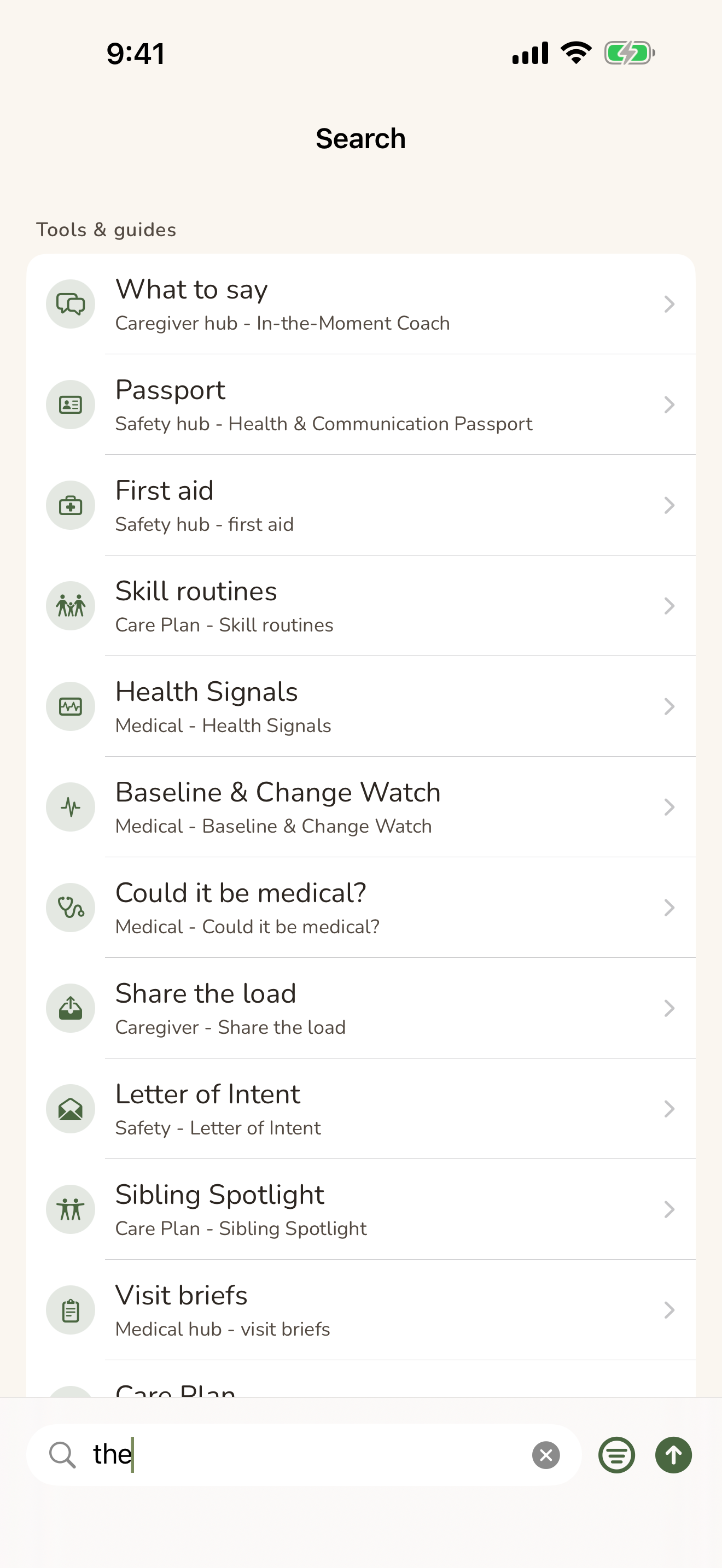
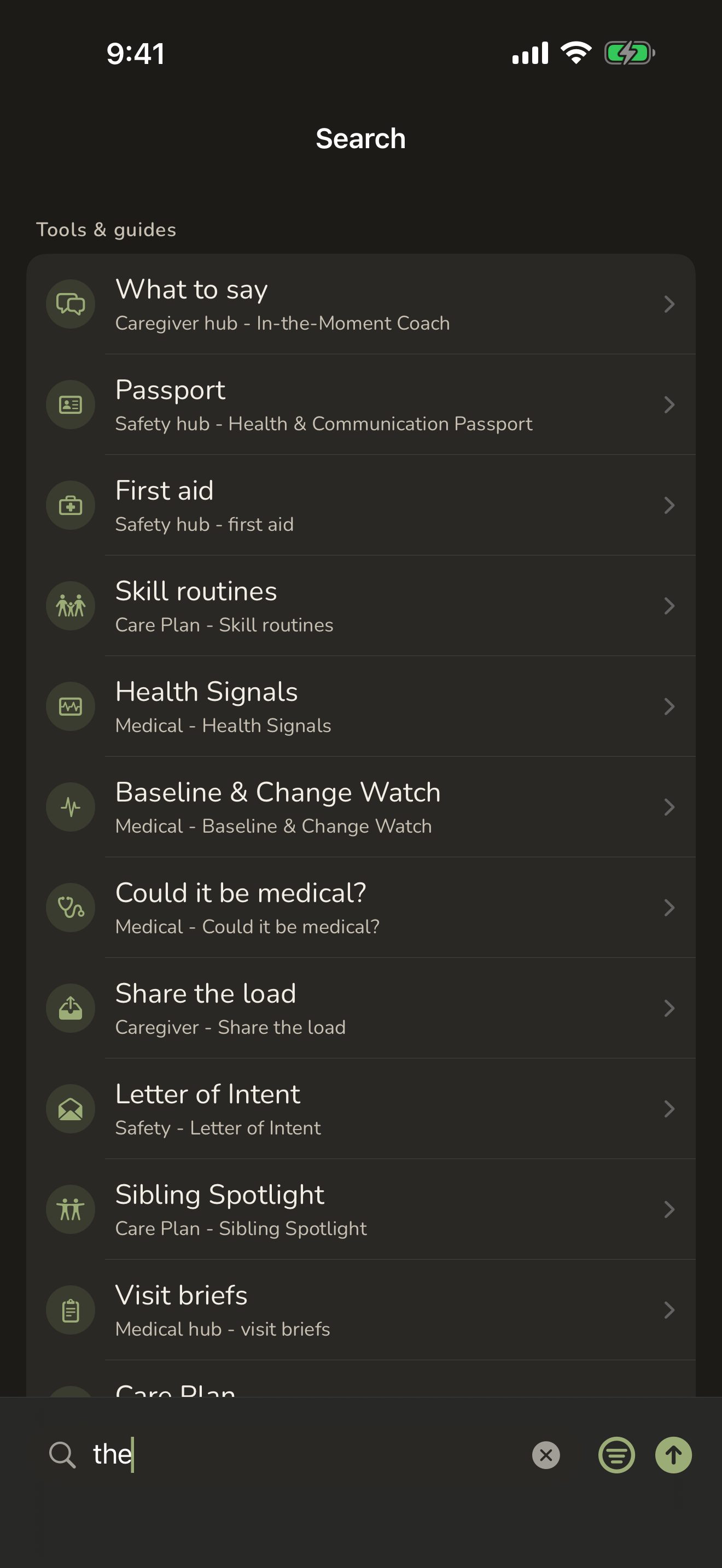
When you need to find something fast, or you just want to ask a question, you go to one place. Tap the search button (the magnifying glass) in the top corner of the screen and start typing.
On this page
You don't have to decide up front what kind of search you want. The same screen does three things, and you can use any of them without leaving it. Available
The three ways to find and ask
1. Keyword search. As you type, CareHaven filters your own entries live, matching the words you've entered. This is the quick way to pull up something you remember writing, like a feeding that mentioned broccoli or a note about a hard morning. No question to phrase, no waiting, just type and the matches narrow down.
2. Smart Filter. Type a plain-English request and tap the funnel icon. CareHaven reads what you asked for and runs a structured search behind it. You can ask things like "feedings under 15 minutes last week," "behaviors during nap times this month," or "sleep entries over 8 hours." A small chip shows you exactly what it pulled out of your request, so you can see it understood you, and the matching entries list below. Available
3. Ask CareHaven. Type a question in everyday words and tap the send arrow. This is for free-form questions, the kind you can't answer by filtering a list, including "how do I..." questions about using the app. Available
You can use all three on the same screen. Run a Smart Filter, then keep scrolling and the keyword matches sit below it, with an Ask answer below that if you asked one. They don't get in each other's way.
Smart Filter: ask for exactly what you want
Smart Filter is for when you have a specific slice of your own data in mind. Instead of opening a list and scrolling, you describe what you're after.
It handles requests like:
- A time window: "feedings last week" or "behaviors this month."
- A time of day: "morning behaviors this month" pulls only the entries from the morning hours.
- A length: "sleep entries over 8 hours."
- A word: "diary entries about therapy" finds the entries that mention therapy.
After you tap the funnel, CareHaven shows you a short chip describing what it understood, then lists the entries that match. If your request isn't really a filter (say you typed a general question), it gently tells you to try the Ask button instead, which is built for exactly that. Available
Ask CareHaven: questions in plain words
The Ask button is for real questions. You can ask how to do something in the app, or ask a general care question, and CareHaven answers in plain language. Each answer comes with a small badge so you can see where it came from, whether it was handled right on your device or from the app's own knowledge, even when you're offline. Available
You can also start an Ask straight from elsewhere in the app. After you log a couple of behaviors, for example, a button can offer to help you understand today's patterns, and tapping it carries you here with the question already filled in.
Universal Search: one place that reaches everything
The keyword search isn't limited to one kind of entry. It looks across the whole app and every type of record for the person you're viewing, so a single search can surface a feeding, a behavior, a goal, a note, or the feature itself. Available
It also understands everyday phrases. You can type something like "how do I..." or a plain word for a feature, and it routes you to the right place rather than making you remember where that feature lives. This keeps up as you type, narrowing as you go.
Universal Search stays entirely on your device. It's just looking through your own data, with nothing sent anywhere.
Finding CareHaven items in your iPhone's search
CareHaven also makes some of your entries findable from your iPhone's own search, the one you pull down on the Home Screen (Spotlight). So you can search for a person, a feeding, a doctor visit, a milestone, or a few other kinds of entry without opening CareHaven first. Available
When you tap a CareHaven result there, the app opens to the right section so you can drill in. New entries you log show up in that search shortly after you've opened and closed the app again.
What stays out of your phone's search
This part is deliberate, and it's about privacy. CareHaven only ever lets a short title, the person, and a date appear in your iPhone's system search. The private contents stay out of it: the body text of your notes and diary entries, the meanings behind your cues, the details inside your plans. Sensitive plans like your crisis plans and your Letter of Intent are kept out of the phone's search entirely, so their very existence never shows up where someone glancing at your phone could see it. Available
In short: you can find your own things quickly, but the tender details aren't sitting in the open.
Your privacy in search
A few things worth knowing:
- Keyword search and Universal Search never leave your device. They're only looking through your own data.
- Names are removed before any question is sent. When the Ask or Smart Filter features need help beyond your device, your person's name is stripped out first, so it's never part of what's sent. Available
- It works offline. When your device can answer on its own, Smart Filter and Ask work with no connection at all. If a question needs more than the device can give while you're offline, keyword search still works, and Ask falls back to the app's built-in knowledge.
For the full picture of how CareHaven protects your data, see Privacy & security.
Tips
- If a Smart Filter request comes back empty or confused, it usually means you asked a question rather than describing a slice of data. Tap the send arrow to Ask it instead.
- The richest results come once you have some history logged. A few weeks of entries give Smart Filter and Ask much more to work with. If you want to see this in action before you've built up your own data, try exploring with demo data.
- Use Universal Search as your shortcut to features, not just entries. Typing the everyday name of a tool, or "how do I...," is often faster than walking the menus.
The search button is one of the few spots you'll come back to all day. For more on the AI behind the Ask answers, see Smart help (Apple Intelligence). To learn how the menus and the search button fit together, see Finding your way around.