Appointments & calendar
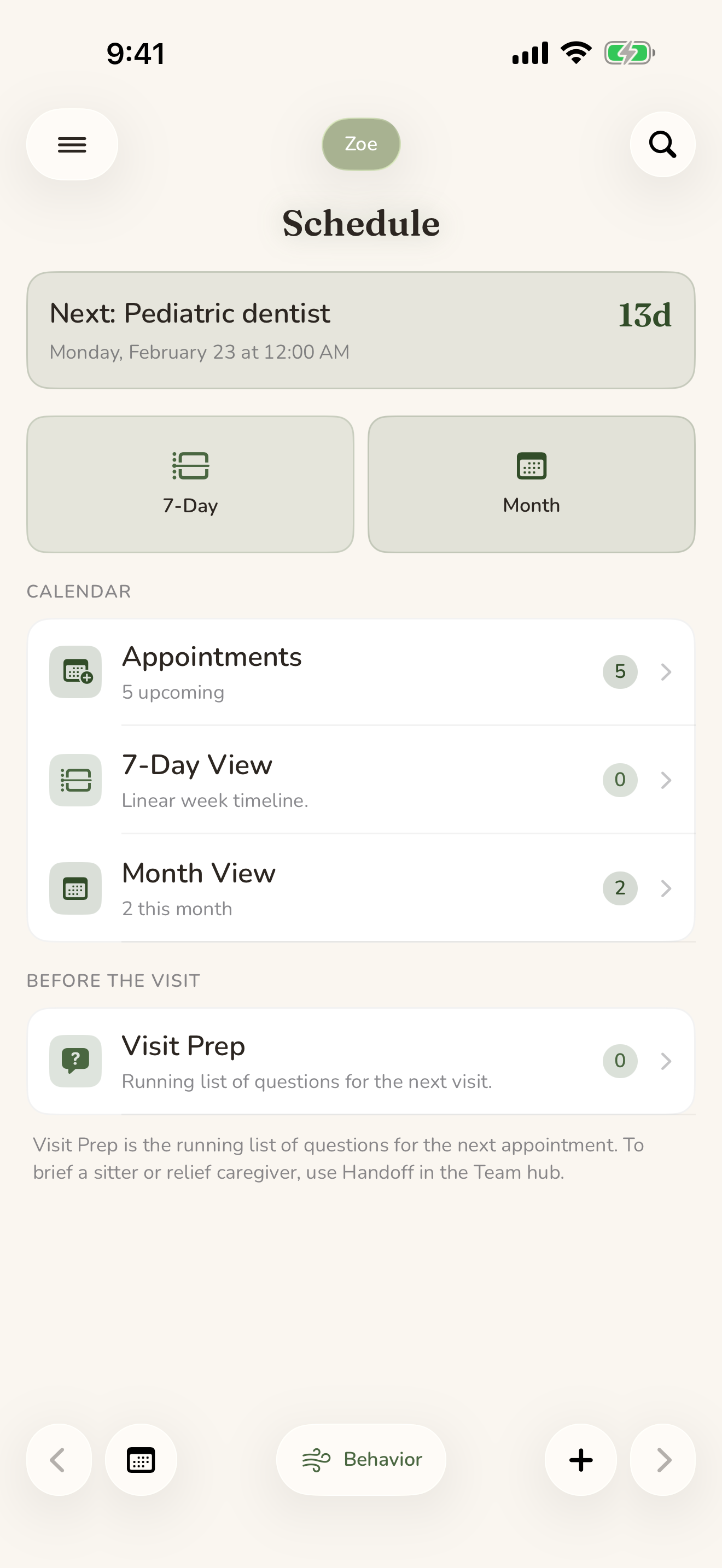
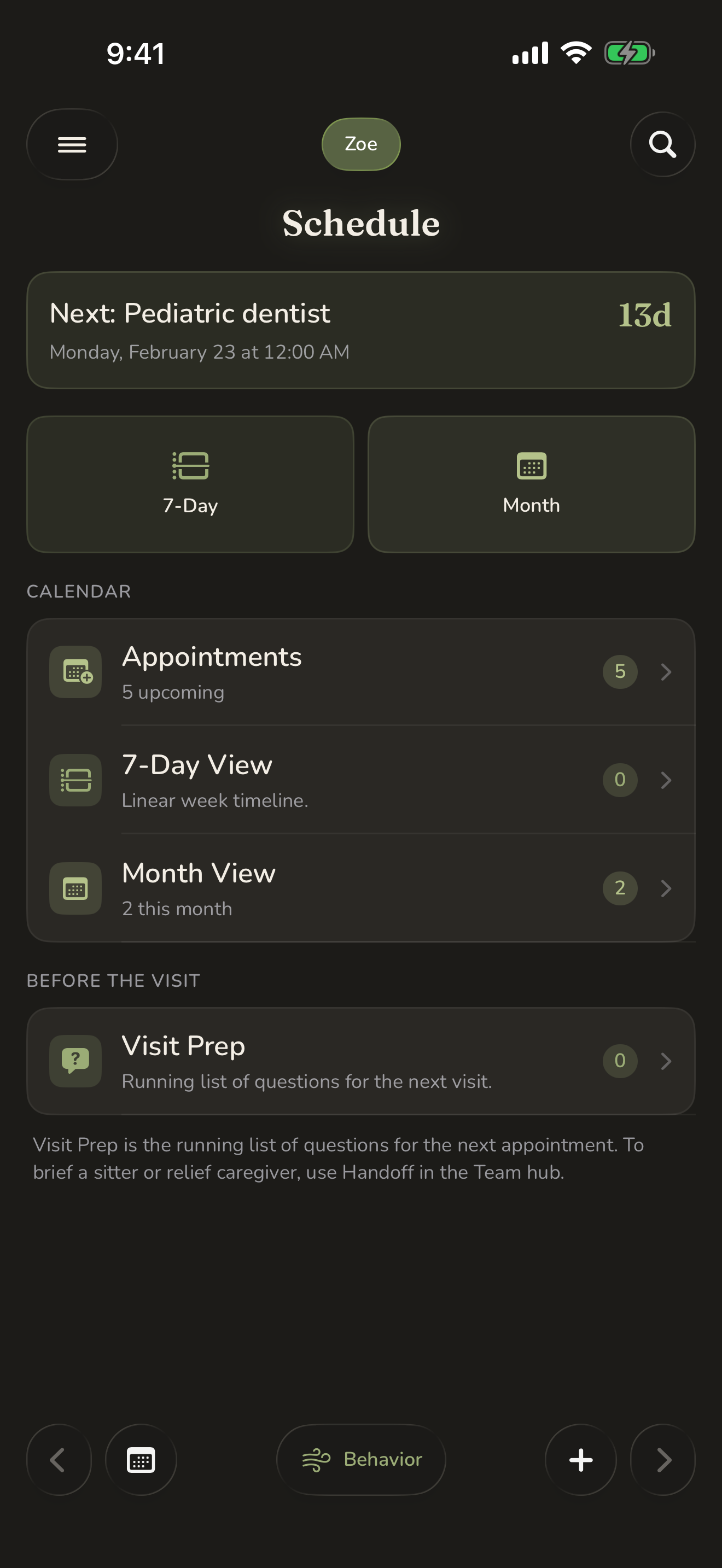
Therapy on Tuesdays, the neurology follow-up next month, the IEP meeting, the dentist. CareHaven keeps all of it in one place, attached to the person it belongs to, so you are not holding the whole calendar in your head.
On this page
CareHaven is the home of the schedule. The schedule lives here, with the rest of that person's care. If you want, your appointments can also flow out to a calendar you already use so iOS reminders and family-shared calendars stay in sync. That part is optional and off until you turn it on.
The schedule
Each person has their own schedule: therapy sessions, medical appointments, school meetings, evaluations, and anything else on the care calendar. The Schedule area is now a full calendar with Day, Week, Month, and Agenda views. Available
Every appointment can carry:
- A title and a provider name
- A date and time
- A location (add the office's full address, not just the building name, so directions come along)
- A recurring pattern, if it repeats
- Notes for what to ask about or what to remember
- A bring-along list for the things you do not want to forget
The calendar can also show medication dose times, routines, coverage shifts, fasting windows, and recent care history alongside appointments, so the week reads like a real care day rather than a plain list of visits.
Adding an appointment
- Open the schedule and tap to add an appointment.
- Enter the title, provider, date, time, and a recurring pattern if it repeats.
- Add notes (what to bring, what to ask about) and fill in the bring-along list.
- Save.
Recurring appointments
If something repeats — weekly therapy, a monthly medication review — set its recurrence once and CareHaven carries it forward for you, so you are not re-entering the same visit every week. Available
The bring-along list
Every appointment has a bring-along field. Use it for the things that are easy to forget on visit day — the seizure log, the emergency card, formula samples, a question you meant to raise. It shows up on the appointment and rides along in the handoff packet so whoever takes them to the visit is not guessing.
Where appointments show up
Your schedule does not stay shut away in one screen. Appointments surface where you need them:
- On the Home screen, an appointment appears on the day it falls, projected from its recurring pattern.
- The next visit shows on the Apple Watch glance and in the handoff packet's upcoming section, so a sitter knows what is coming.
- Past appointments archive on their own. Search the list for "neurology" or "OT" to find the last visit. Available
You can also ask CareHaven what is next. A Siri request reads the schedule aloud, hands-free, including in CarPlay. Available
Get ready for a visit that's coming up
When a visit is close — the day before or the day of — a "Get ready for this visit" section appears on it. It offers your saved questions for that visit plus a one-tap, 30-day summary you can read aloud, pulled together from the recent logged data so you walk in with the picture instead of trying to reconstruct it from memory. This shows up only while the visit is near, not on every appointment at any time. Available
Calendar views and tools
Use the mode buttons at the top of Schedule to switch between Day, Week, Month, and Agenda. Day is best for "what is happening today"; Week is best for therapy and dose rhythm; Month is best for planning ahead; Agenda is best when you want a compact list. Available
Tap Today any time you want to jump back to the current date. If the calendar view feels too broad, switch to Agenda for a tighter list of what is coming next.
The older appointment list is still reachable from Schedule tools. Use it when you want a simple searchable list of appointments rather than the calendar layout.
You can share a single appointment as a calendar file through the iOS share sheet. You can also import events from a calendar file or from Apple Calendar, but CareHaven waits for you to review the list before it saves anything. Nothing is imported silently. Available
To share one appointment:
- Open the appointment from Schedule.
- Choose Share calendar file.
- Send it through the iOS share sheet by Messages, Mail, AirDrop, Files, or another app.
To import appointments:
- Open Schedule tools.
- Choose the import option.
- Pick a
.icscalendar file or an Apple Calendar source. - Review the events CareHaven found.
- Confirm only the ones you want to save.
Mirror your schedule to a calendar (Apple Calendar sync)
If you would rather see everything in one place, CareHaven can sync with the calendars you already use — your iCloud, Google, and Microsoft Outlook or Exchange calendars, any account you have added to your iPhone. This is off until you turn it on. Available
How it works today:
- CareHaven stays the home of your care schedule. Apple Calendar sync is optional and off until you turn it on.
- When sync is on, you choose which calendars to include. They can come from iCloud, Google, Outlook, or Exchange accounts already configured on your iPhone.
- CareHaven-created appointments go to the default calendar you choose.
- Events from selected calendars come into CareHaven as editable appointments for the person you are viewing.
- Appointment review and edit flows preview what will happen before anything is saved.
- Calendar settings show plain-language sync health and issue messages when permission, conflict, or sync problems need your attention.
Review shared calendars carefully. If a calendar is visible to other people or on shared devices, anything you put on that calendar can be seen there too. CareHaven makes the sync choice explicit, but your outside calendar still controls who can see its events.
Turning sync on
- Open Settings, go to Sync & Backup, then Apple Calendar, and switch on sync with Apple Calendar. The app asks once for Calendar permission.
- Under the list of calendars, pick which ones to show in CareHaven. They are grouped by account — iCloud, Google, Outlook or Exchange — so you can tell which is which. Choose as many as you like across any account. A read-only calendar still shows up; you just cannot edit those events from inside CareHaven.
- Choose which calendar new appointments you create in CareHaven should land on. If you do not pick one, they go to your iPhone's default calendar.
- Tap Sync now any time to push and pull right away. Otherwise it syncs when you open the app and after you save an appointment.
If CareHaven needs attention from you, Calendar settings show the issue in plain language, such as a missing permission, a sync problem, or a conflict that needs review. When an appointment is about to change because of Apple Calendar sync, the app shows the edit or review screen before it saves.
Don't see your Google or Outlook calendar?
Those calendars appear once you have added the account to your iPhone. Open the iPhone's own Settings app, go to Apps, then Calendar, then Accounts, and add the account there. The next time you open CareHaven's calendar settings, those calendars show up in their own group, ready to turn on. CareHaven never holds your Google or Outlook password — your iPhone owns those connections.
How both directions work
- Events from the calendars you picked come into CareHaven as appointments for the person you are currently viewing, ready to view and edit without leaving the app.
- Appointments you create in CareHaven are written to your chosen calendar with their recurring pattern, and edits flow back to whichever calendar each event lives in.
- If the same appointment is edited in both places between syncs, the most recent edit wins.
What happens when things change
CareHaven is careful never to lose your care data because of an outside change:
- If you delete an event from a calendar, CareHaven keeps its copy and just unlinks it.
- If you stop showing a calendar, the appointments already brought in stay put; CareHaven simply stops pulling new updates from it.
A note on privacy
Whether or not you turn on calendar sync, your care records stay on your device. When sync is on, your iPhone owns the connection to Google or Outlook — CareHaven itself holds no Google or Outlook password and sends nothing to those servers directly. Sharing a calendar file or importing a calendar file happens only when you ask for it. For the full picture, see Privacy & security.
Related
- The Home screen — where today's appointments surface
- Caregiver tools — the handoff packet carries your next appointments
- Across your Apple devices — the Watch glance and Siri
- Sharing & reports — pulling appointment history into a report